



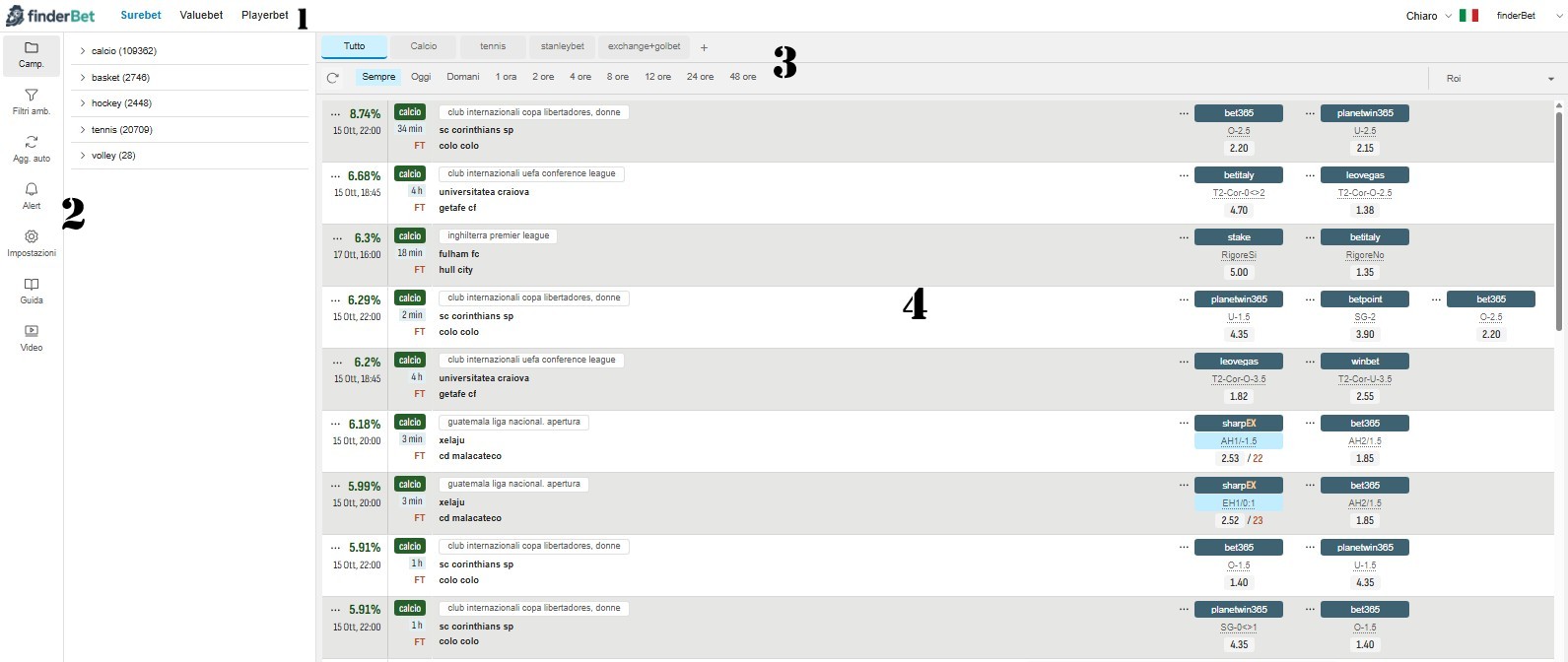
The finderBet interface allows you to browse the opportunities identified by the service and organize the display through sections, filters, and sorting criteria. The screen is divided into four main areas: the top menu, the sidebar, the filter area, and the results list.
1. Top menu
At the top of the page you can access the three main sections:
At the top right are the options for the graphic theme, language and user menu.
2. Sidebar and sports selection
On the left side you will find the navigation tools:
Next to the bar is a list of sports, including football, basketball, hockey, tennis, and volleyball. Each item has a counter and an arrow to expand the list. Individual features will be explored in more detail in the dedicated sections of the guide.
3. View tabs and filters
Above the results, you’ll find the search tabs, with “All” selected and other tabs side by side. The “+” button is located at the end of the bar.
Immediately below are the refresh command and time filters: “Always,” “Today,” “Tomorrow,” and various intervals expressed in hours. On the right is the sorting menu, set to “Roi” on the screen.
4. List of opportunities
The central section is dedicated to results. Each row contains information related to an opportunity:
The event details are on the left side of the row, while the bookmaker selections are displayed side by side on the right. This layout allows you to read all the details of the opportunity on the same row.
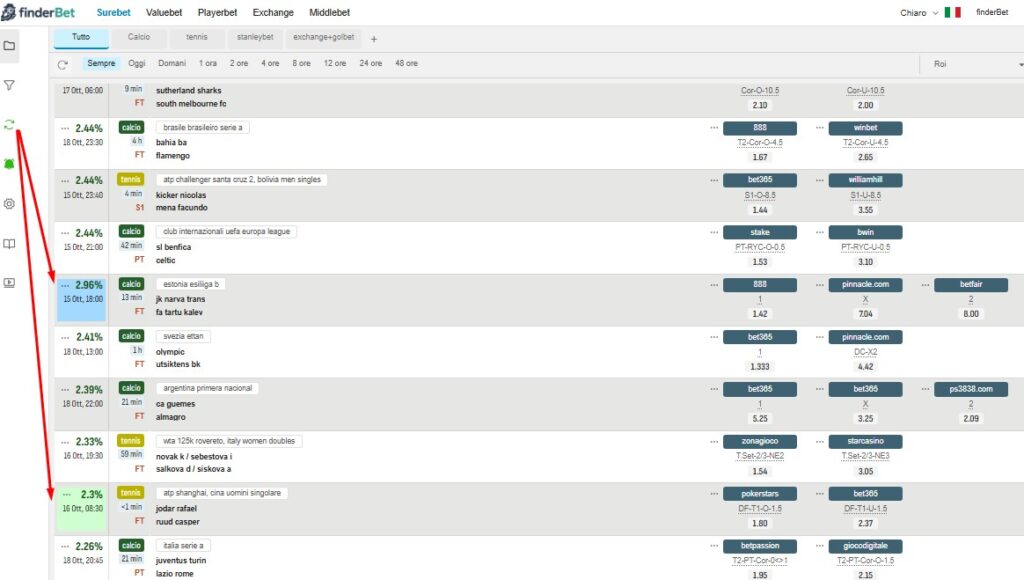
In the side menu, you’ll find the “Auto Update” and “Alert” commands, identified by the circular arrows and the bell icon, respectively. Both icons are green on the screen.
Automatic refresh allows you to keep your opportunity grid up to date without having to manually refresh the page.
During updates (every 15 seconds), opportunities are highlighted with two colors:
Highlighting appears in the percentage and event date area, helping you quickly distinguish new opportunities from updated ones, as shown by the arrows on the screen.
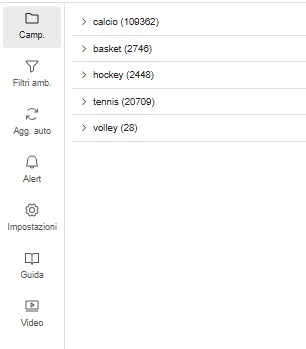
The Leagues section, accessible from the “Champ.” button in the side menu, allows you to consult the sports and open the list of selectable leagues.
Next to each sport, the number in brackets indicates the available betting options (main + alternatives). The arrow allows you to expand the list of leagues.
To select a league:
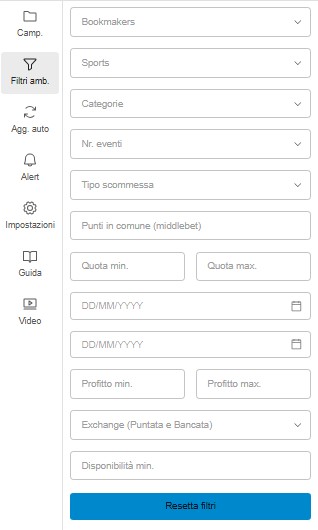
The Environment Filters section, accessible from the “Environment Filters” button in the side menu, allows you to customize your search for betting opportunities using different selection criteria.
Filter | Description |
Bookmakers | Allows you to select the bookmakers of interest. |
Sports | Allows you to select the sports to include in your search. |
Categories | Allows you to filter opportunities based on share types. |
No. of events | Allows you to select 2 or 3 event combinations. |
Bet type | Allows you to choose the type of bet. |
Common points (middlebet) | Allows you to set the criterion relating to the common points of the middlebets. |
Minimum odds. / Max. odds. | They define the minimum and maximum limits of the quotas. |
Dates from/to | They delimit the period in which events take place, indicating a start and end date. |
Min. Profit / Max. Profit | They define the minimum and maximum profit limits. |
Exchange (Back and Lay) | Allows you to set the filter for back and lay options in the exchange. |
Minimum availability. | Indicates the minimum playable amount required in the exchange. |
How to use filters
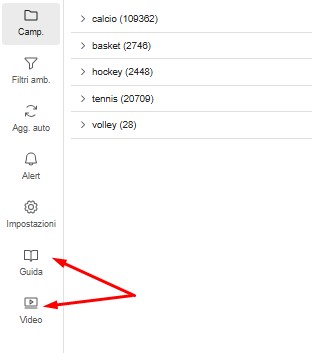
In the side menu you will find the “Help” and “Video” buttons, highlighted by the red arrows on the screen: these are the access points to the support content for using the service.
To open the desired content, click on the relevant item in the side menu.
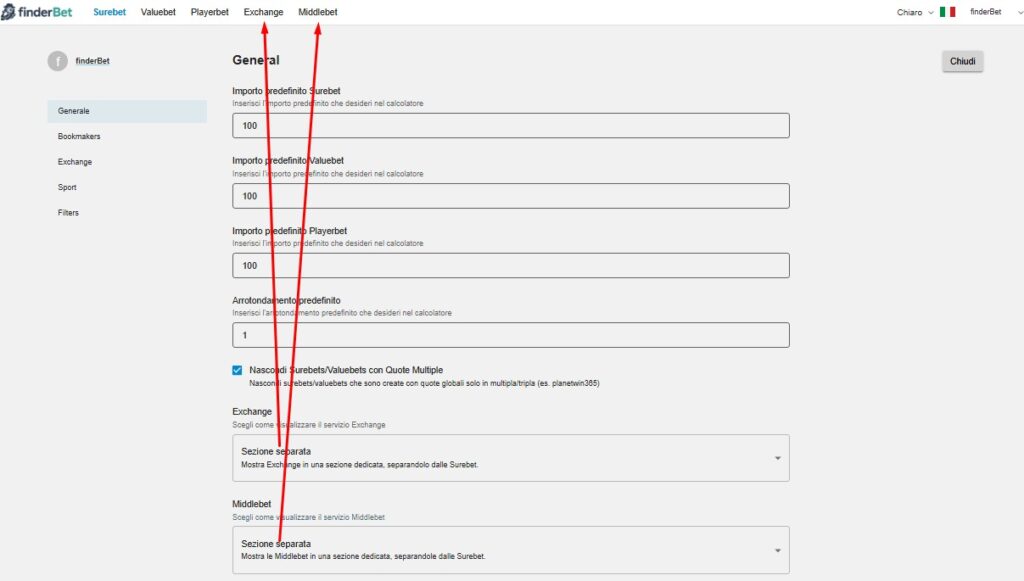
The Settings section allows you to customize the calculators’ default values and some of the odds display options. The menu on the left organizes the settings into the General, Bookmakers, Exchange, Sports, and Filters categories. The screenshot shows the General category.
Default calculator amounts
You can set the default amount for the calculators of the three sections separately:
Enter the amount you want to use as the starting value in the calculator in the appropriate field. In the screenshot, all three amounts are set to 100.
Default rounding
The “Default Rounding” field allows you to set the rounding value to use in the calculator. In the example, it is set to 1 (rounding to the nearest hundredth).
Hiding Opportunities with Multiple Quotas
The “Hide Surebets/Valuebets with Multiple Odds” option allows you to hide surebets and valuebets created with global odds available only in multiple or treble bets. To use this exclusion, select the corresponding box. The option is active on the screen.
Display and separation of Exchange and Middlebet services
In the “General” category of user settings, you can choose how to display the Exchange and Middlebet services, configuring them separately via the respective drop-down menus. Two modes are available:
To separate services:
You can apply the separate mode to both services or to just one, leaving the other integrated into the Surebets.
Bookmakers, Exchanges and Sports
The Bookmakers, Exchange and Sports sections of the user settings allow you to customize the selection of operators and sports, as well as setting the bookmaker and exchange commissions. All three screens feature a “Prematch” or “Live” tab.
Bookmakers
In the “Bookmakers” section you will find a list of bookmakers, each accompanied by:
Scroll through the panel to browse available operators and select the ones you’re interested in. On the screen, the visible switches are active and the commissions are set to 0.
Exchange
The “Exchange” section allows you to activate or deactivate exchange operators and set their respective commissions.
The example screen contains:
These are the values shown in the example: enter the ones required for your account. For the BetflagExchange entry, you can also choose between “BetflagExchange” and the clone “VincituExchange” using the selection buttons.
Sport
In the “Sports” section you can activate or deactivate sports using the switch to the right of each item.
How to configure preferences
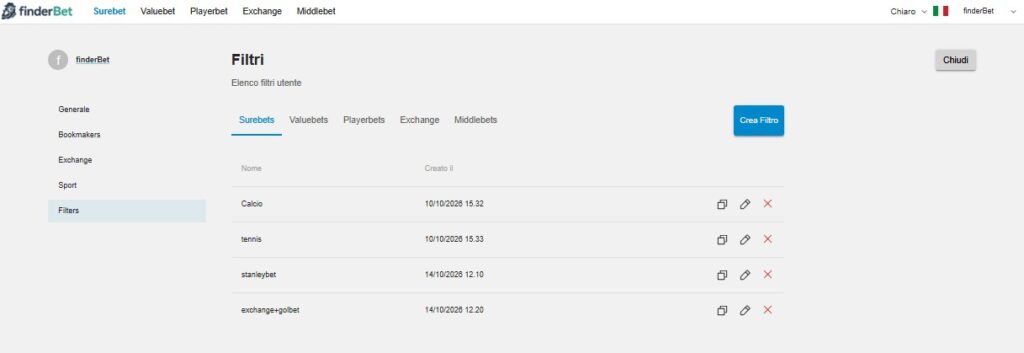
The Filters section of the user settings allows you to create and manage custom filters using the same criteria available in the Environment Filters, already described in the guide.
Filters are organized by selected service. Each tab lists the filters created for that section.
Creating a filter
To get started, select the desired tab and click the “Create Filter” button. Then configure your criteria using the same options as the Environment Filters, such as bookmaker, sport, odds types, 2- or 3-event combinations, odds and profit limits, date range, and minimum exchange availability.
Filter Management
In the list, each filter is identified by its name and creation date. On the right of each row you will find icons for:
Applying custom user filters
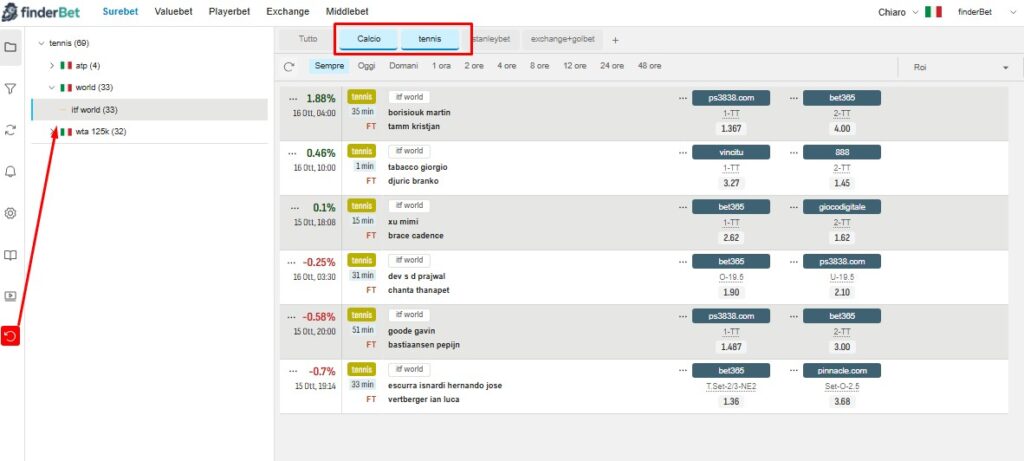
Custom filters are available in the bar above the opportunity grid. Click on the name of a filter to apply it: the selected filters are highlighted in blue. “Football” and “tennis” are active on the screen.
When you apply user filters, the sidebar only shows associated leagues, allowing you to further narrow your view to a single league.
Selecting and resetting a championship
Click on a league in the sidebar to view only its opportunities. To clear this selection, use the red reset arrow button shown on the screen.
Resetting the league does not clear custom user filters: they remain active.
Deselecting user filters
To deselect custom filters, click the “All” tab in the top bar. Selecting a league and selecting user filters are then managed separately:
Custom filters are available in the bar above the opportunity grid. Click on the name of a filter to apply it: the selected filters are highlighted in blue. “Football” and “tennis” are active on the screen.
When you apply user filters, the sidebar only shows associated leagues, allowing you to further narrow your view to a single league.
Selecting and resetting a championship
Click on a league in the sidebar to view only its opportunities. To clear this selection, use the red reset arrow button shown on the screen.
Resetting the league does not clear custom user filters: they remain active.
Deselecting user filters
To deselect custom filters, click the “All” tab in the top bar. Selecting a league and selecting user filters are then managed separately:
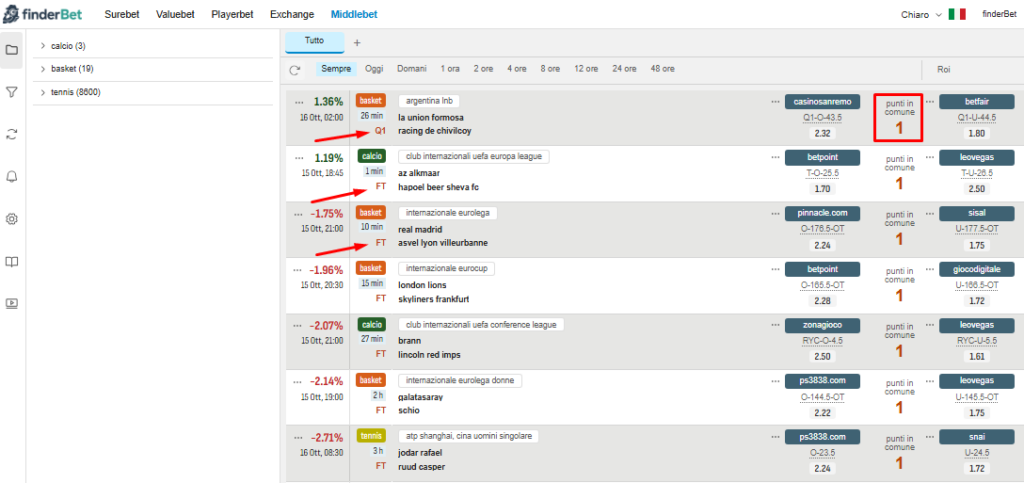
The central grid contains the opportunities identified by the service. Each row displays the event data, the bookmakers involved, the selections, and their respective odds. The Middlebet section also displays the number of “points in common.”
Percentage, date and time
The first column shows the ROI percentage associated with the opportunity, with positive values highlighted in green and negative values in red. The date and time of the event are shown immediately below.
Event Information
The next part of the line contains:
The acronyms highlighted by the arrows help distinguish the market for the entire match (“FT”) from that for a specific period, such as the first quarter (“Q1”). It is therefore important to read this indication along with the selection shown under the bookmaker.
Bookmakers, selections and odds
On the right side of the row, each selection is presented with:
The selections are side by side to allow comparison within the same opportunity.
Commonalities in Middlebets
In Middlebet, a “points in common” column appears between bookmakers’ selections. This value indicates how many outcomes of the size considered by the market fall within the zone where both selections are winners.
The number of overlapping points should therefore be read together with the lines, the playing period and the odds: it describes the size of the overlapping area, not a guaranteed win.
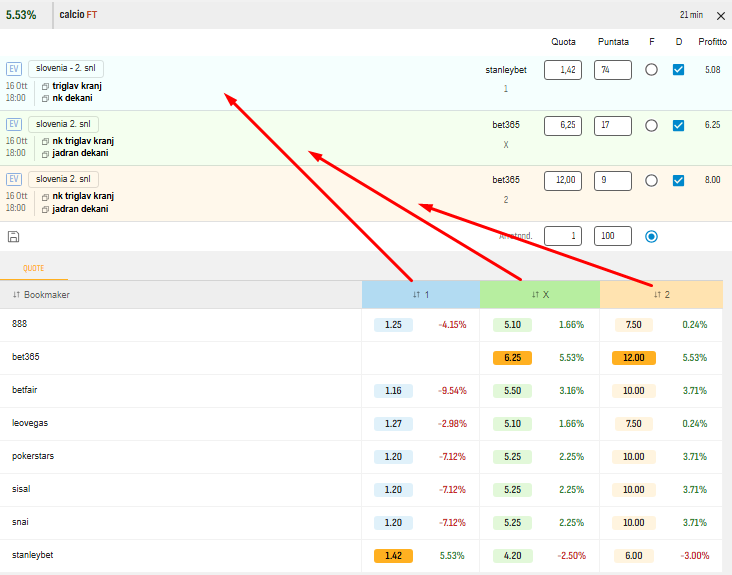
The calculator allows you to manage the odds and stakes for a given opportunity, displaying the total stake and the expected profit for each outcome. At the bottom, the Odds Checker allows you to compare alternative odds offered by different bookmakers for the same market.
Calculator information and fields
Each row corresponds to a selection and reports the event data, the bookmaker, the outcome and the following fields:
Below the selections are the rounding value and the total bet amount. The percentage of the opportunity is shown in the top left.
Automatic recalculation and F and D options
Any changes to odds, amounts or “F” and “D” options automatically recalculate all values, including the total stake and expected profit.
You can then change the parameters and immediately check the effect on the results by reading the updated values in the “Profit” column.
Alternative odds in the Oddchecker
The “ODDS” table, below the calculator, lists the bookmakers in the rows and the outcomes in the columns. For each alternative, it displays the odds and the percentage associated with the combination. The odds used in the calculator are highlighted in orange.
The colors help to connect each column to the relative selection: in the example of the “1X2” market, the blue identifies outcome 1, the green outcome X and the yellow outcome 2.
All columns can be sorted in ascending or descending order by clicking on the corresponding header. This allows you to organize bookmakers and odds according to your preference and more easily compare available options.
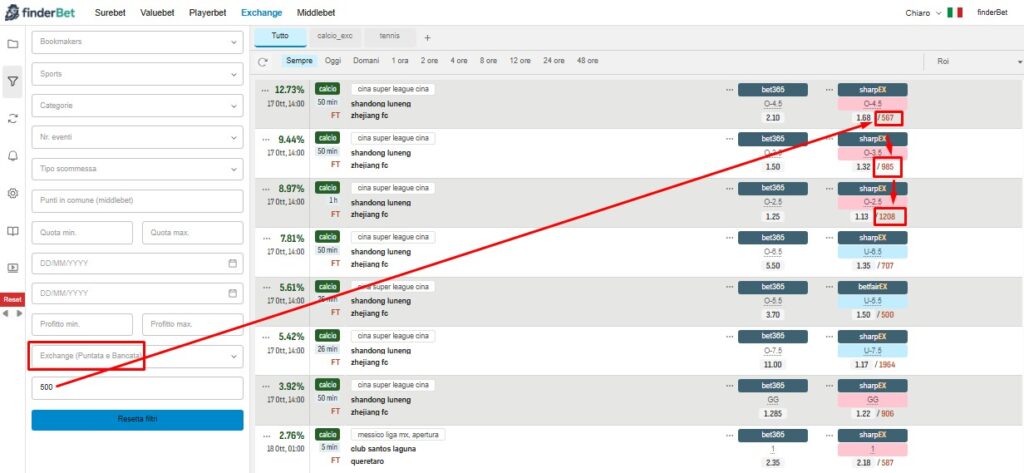
FinderBet allows you to filter opportunities based on availability on the exchange, consult three market depths via the Dutcher and view both back/back and back/lay combinations.
Minimum Exchange Availability
The “Min. Availability” field in the Environment Filters allows you to set a minimum liquidity threshold, excluding opportunities with availability lower than the indicated value.
In the example screenshot, the threshold is set to 500: the list therefore shows opportunities with at least 500 units available on the exchange. The number after the slash next to the price indicates the liquidity detected at that price: for example, “1.68 / 567” indicates a price of 1.68 with 567 units available.
Dutcher: Three market depths for each exchange
The Dutcher allows you to view three market depths, i.e. three levels of quota with their respective availabilities.
This feature allows you to compare available liquidity at different prices and evaluate how to cover the desired amount, even when the availability at a single share is insufficient. The three levels therefore provide a more detailed view of liquidity than the best share alone.
Combinations
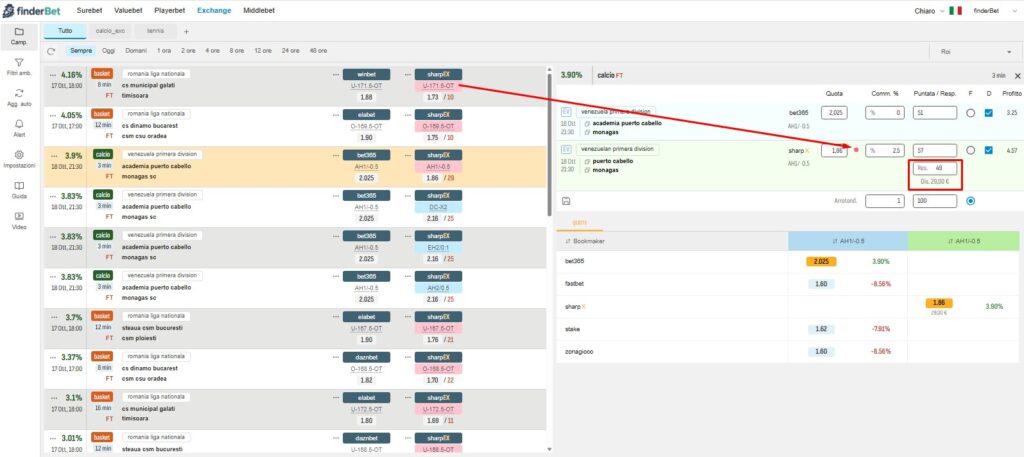
FinderBet allows you to view exchange opportunities in both modes, expanding the possibilities for combining and using liquidity:
In the grid, the background color of the exchange selection allows you to immediately recognize the opportunity mode. The same information is shown in the calculator with a colored dot: blue for backing and red for laying.
The “Exchange (Back and Lay)” menu in the Environment Filters allows you to select which modes to display.
Back Responsibility
For back/lay combinations, the calculator also displays the liability, i.e., the amount you risk losing if the bank outcome occurs. It’s calculated by multiplying the lay amount by the lay odds minus one: betfair + 1
Responsibility=Bet amount ×(Lay odd−1)
For example, with a €50 bet at odds of 3.00, the liability is equal to €100: 50×(3−1)=100

[email protected]
+39 012 3456789